

Artificial Intelligence (AI) has revolutionized photography and image editing, making it easier than ever to create stunning visuals. Gemini, one of the leading AI-powered photo editing tools in 2026, offers unique features that allow users to enhance their images, transform ordinary photos into artistic masterpieces, and save significant time in the editing process. Whether you are a professional photographer, content creator, or hobbyist, understanding how to craft the best prompts for Gemini can dramatically improve your results. In this article, we’ll explore six of the best Gemini photo editing prompts in 2026, along with tips to get the most out of them.
What Are Gemini Photo Editing Prompts?
Before diving into the best prompts, it’s important to understand what Gemini photo editing prompts are. In AI-powered editing tools, prompts are textual instructions or commands given to the AI to guide the editing process. The more precise and detailed your prompt, the better the AI can understand your vision and generate the desired output.

Gemini uses advanced algorithms to analyze your prompt, the original image, and other parameters like lighting, color, style, and mood. It then produces an enhanced or transformed version of the photo based on your instructions. Prompts can range from simple commands like “brighten the photo” to complex artistic transformations like “convert this portrait into a cyberpunk-inspired artwork.”
Why Using Prompts in Gemini Matters
Using effective prompts in Gemini is crucial because:
- Precision: Clear prompts ensure the AI produces images closer to your vision.
- Creativity: Prompts can unlock unique styles, artistic effects, and innovative photo compositions.
- Efficiency: Well-crafted prompts reduce trial and error, saving time in editing.
- Consistency: Using specific prompts allows you to maintain a consistent style across multiple images.
In 2026, AI image editing is more advanced than ever, but the quality of your results still heavily depends on the way you communicate with the AI.
1. Enhance Portraits with Subtle Lighting Adjustments
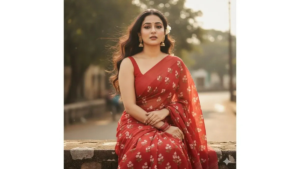
Prompt Example:
“Enhance this portrait with soft, natural lighting, slightly warm tones, and subtle skin smoothing while keeping all facial features sharp and realistic.”
Portrait photography relies heavily on lighting. Gemini’s AI can analyze shadows, highlights, and skin tones to improve the overall quality of your portraits. By specifying lighting adjustments in your prompt, you can achieve professional results without manually editing every detail.
Why it works:
- The AI understands natural skin textures and prevents over-editing.
- Warm tones can make the photo feel more inviting and lively.
- Subtle lighting adjustments help emphasize facial features without making the image look artificial.
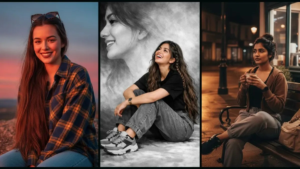
Tips for Better Results:
- Include the type of lighting you want (e.g., “golden hour,” “studio lighting,” “soft daylight”).
- Mention the mood or emotion, like “soft romantic feel” or “energetic vibe.”
- Specify if you want background adjustments alongside the portrait.
2. Transform Ordinary Landscapes into Cinematic Scenes
Prompt Example:
“Convert this landscape photo into a cinematic scene with a dramatic sky, enhanced colors, and realistic depth. Highlight natural textures such as water reflections, tree leaves, and mountain contours.”
Landscape photography can benefit immensely from AI editing. Gemini can enhance natural colors, add depth, and even simulate cinematic lighting to make your photos look like movie stills.
Why it works:
- Cinematic transformations make landscapes more visually striking.
- AI enhances depth perception, making the photo appear three-dimensional.
- Texture detailing creates a lifelike experience that draws the viewer’s attention.
Tips for Better Results:
- Mention the type of mood you want, such as “moody,” “sunset glow,” or “epic adventure.”
- Specify camera effects like “wide-angle perspective” or “shallow depth of field.”
- Include elements you want emphasized, such as water, mountains, or forests.
3. Stylize Images with Artistic Filters
Prompt Example:
“Apply a modern watercolor effect to this image while preserving fine details and natural colors. Emphasize brushstroke textures and subtle gradients.”
Gemini excels at transforming photos into artistic styles. From watercolors to oil paintings and digital illustrations, AI can create unique, visually appealing images suitable for social media, art prints, or personal projects.
Why it works:
- Artistic filters can make your images stand out and feel handcrafted.
- AI preserves important details while adding the style effect.
- It reduces manual editing time and technical skill requirements.
Tips for Better Results:
- Specify the artistic style clearly, like “impressionist,” “vintage poster,” or “digital neon art.”
- Include desired color tones, such as “pastel shades” or “high-contrast colors.”
- Mention any parts of the image that must remain untouched for realism.
4. Correct Colors and Improve Image Realism
Prompt Example:
“Adjust the colors to make the image more vibrant without over-saturating. Ensure the skin tones are natural, shadows are soft, and highlights are balanced for realistic depth.”
Color correction is one of the most essential tasks in photo editing. Gemini uses AI to analyze the image and make subtle improvements that are difficult to achieve manually. This is especially useful for professional photography or e-commerce product images.
Why it works:
- Natural color adjustments prevent the photo from looking artificial.
- Corrected colors enhance mood, focus, and overall composition.
- Proper shadows and highlights create depth and visual interest.
Tips for Better Results:
- Include a reference style or look, like “vibrant tropical tones” or “muted vintage palette.”
- Specify which parts of the image require correction, like “background” or “skin tones.”
- Mention the lighting condition you want to mimic, such as “sunset ambiance” or “soft studio light.”
5. Add Realistic Backgrounds and Remove Clutter
Prompt Example:
“Replace the background with a soft bokeh effect, remove unwanted objects, and maintain natural lighting on the subject.”
Removing clutter or replacing backgrounds can dramatically improve an image. Gemini can seamlessly isolate subjects, fill in backgrounds, and maintain realistic lighting and perspective.
Why it works:
- AI background replacement saves hours of manual editing.
- Bokeh or blurred backgrounds help the subject stand out.
- Cleaned-up images are ideal for social media, portfolios, and advertising.
Tips for Better Results:
- Describe the type of background you want, like “urban skyline” or “forest path.”
- Mention if you want the AI to preserve reflections, shadows, or interactions between the subject and background.
- Specify the depth of blur or focus effects for realism.
6. Creative Enhancements for Social Media Content
Prompt Example:
“Add subtle motion blur to create a dynamic feel, enhance color vibrancy, and include a soft vignette to focus attention on the subject.”
For social media content, creating engaging, eye-catching images is essential. Gemini can add creative enhancements that make photos stand out in crowded feeds, from Instagram posts to TikTok thumbnails.
Why it works:
- Motion blur and vignettes guide the viewer’s eye to the focal point.
- Enhanced colors increase visual appeal without looking unnatural.
- Creative editing allows your content to align with current visual trends.
Tips for Better Results:
- Include the platform or purpose for the photo, like “Instagram feed,” “Pinterest pin,” or “website banner.”
- Mention any thematic elements, such as “energetic,” “fun,” or “luxurious.”
- Specify subtle effects rather than extreme changes for professional quality.
Frequently Asked Questions (FAQs)
Q1. Can Gemini edit any type of photo?
Yes, Gemini can handle portraits, landscapes, product photography, artistic images, and more. The key is using clear and detailed prompts.
Q2. Do I need technical editing skills to use Gemini?
No, Gemini is designed for all skill levels. You only need to provide descriptive prompts. The AI handles complex adjustments like lighting, color correction, and background enhancements.
Q3. How do I make my prompts more effective?
Be specific about the style, mood, lighting, colors, and desired effects. Include details about what to emphasize or avoid. For example, “Enhance shadows while keeping skin texture natural.”
Q4. Can Gemini maintain a consistent style across multiple images?
Yes, by using consistent prompts, Gemini can apply similar styles, color grading, and effects to a series of photos. This is ideal for branding or social media campaigns.
Q5. Is Gemini suitable for professional photography?
Absolutely. Many professional photographers use Gemini to speed up editing, enhance image quality, and explore creative transformations.
Conclusion
Gemini photo editing prompts in 2026 provide an incredible opportunity to elevate your photography with minimal effort. By crafting detailed and precise prompts, you can enhance portraits, transform landscapes, apply artistic filters, correct colors, remove clutter, and create engaging social media content.
The six prompts discussed in this article cover the most essential editing scenarios:
- Enhancing portraits with subtle lighting adjustments
- Transforming landscapes into cinematic scenes
- Stylizing images with artistic filters
- Correcting colors for realistic and vibrant photos
- Adding realistic backgrounds and removing clutter
- Creative enhancements for social media content
The secret to getting the best results from Gemini lies in the details. The more information you provide about lighting, mood, style, and desired effects, the closer the AI will get to producing the image you envision. In 2026, AI photo editing is not just a tool—it is a creative partner that can help anyone, from hobbyists to professionals, achieve stunning visual content.
By mastering these prompts, you can save time, maintain consistency, and unlock new levels of creativity in your photography. Gemini makes it easier than ever to turn ordinary photos into extraordinary works of art.